Set up ChatMerchant connector

Connect your Shopify store to ChatGPT. It takes about five minutes.

You need: a Shopify store and a ChatGPT account.
Connector address:
https://www.chatmerchant.net/mcp-shopify.ashx
1

Install ChatMerchant

Open ChatMerchant in the Shopify App Store. Click Install. Approve the permissions.

2

Open Plugins in ChatGPT

Go to chatgpt.com. Click Plugins in the left menu. Click the + button. Choose Create custom MCP server.

If a window asks for a file, click Create MCP App.
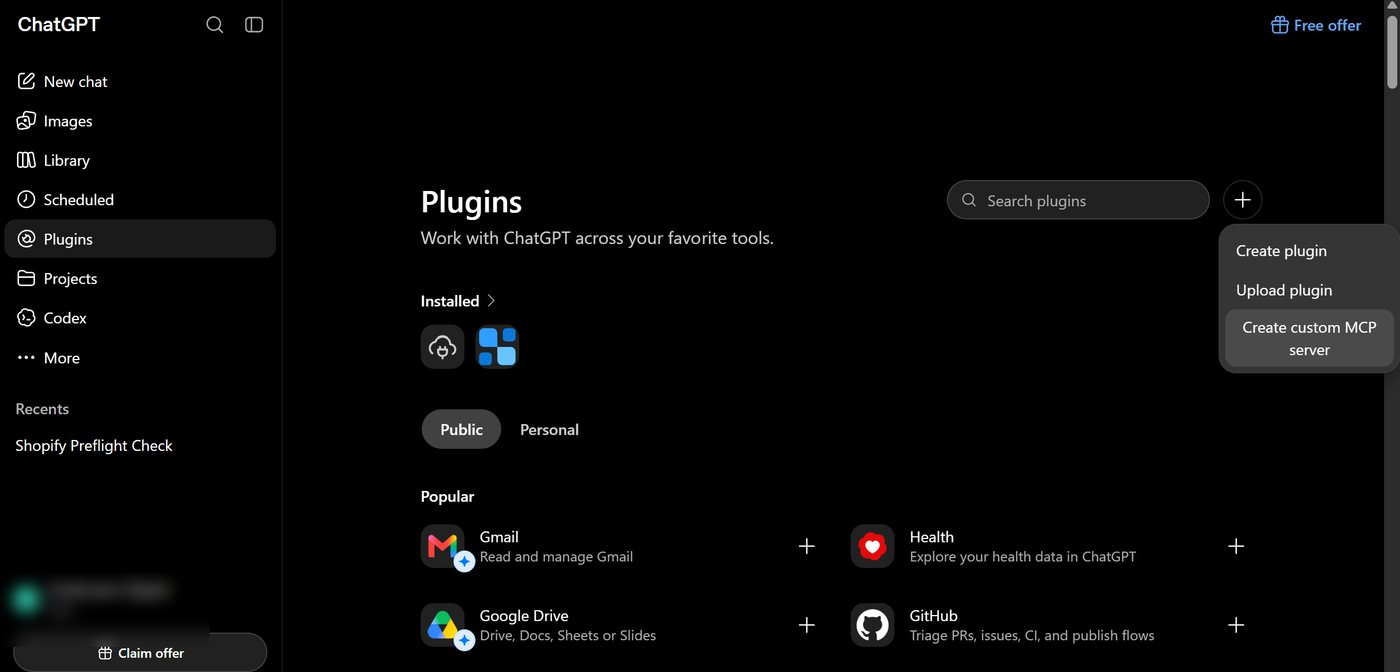
ChatGPT Plugins page with the plus menu open and Create custom MCP server highlighted
ChatGPT may change menu names. Look for where you can add a custom connector.
3

Fill in the form

  • Name: ChatMerchant
  • Server URL: paste the address below
  • Authentication: OAuth
  • Tick I understand and want to continue
  • Click Create
https://www.chatmerchant.net/mcp-shopify.ashx
ChatGPT New Plugin form filled in with the ChatMerchant name, server address and OAuth
4

Sign in and allow

Click Sign in with ChatMerchant. A ChatMerchant page opens. Pick your store. Click Allow.

ChatMerchant page asking whether to allow ChatGPT to use ChatMerchant on your store
5

Click Refresh

Go back to ChatGPT. Open the ChatMerchant connector. If you see No app tools available yet, click Refresh. The tools will show up.

ChatGPT ChatMerchant connector settings with the Refresh button
6

Try it

Start a new chat. Ask for something small, like:

  • With ChatMerchant, list my themes
  • With ChatMerchant, which products have no description?
ChatGPT answering a request to list Shopify themes using ChatMerchant

If something does not work

  • No tools show up: click Refresh in the connector.
  • ChatGPT cannot connect: remove the connector. Add it again.
  • To disconnect ChatGPT, open Connected apps in your dashboard. Or uninstall ChatMerchant in Shopify.
  • Still stuck? Contact support.